Pages

Thursday, 22 March 2012

Put your story on the cube

When I learned about CubeCreator from the readwritethink website, I thought it might easily be used with students to make the tedious learning process more attractive.


Students can make three types of pre-designed cubes and the fourth possibility is to make their own cube.

For their first cube my students had to use the BioCube template to create the biography of a famous athlete. As you can see, they produced great cubes and enjoyed themselves in the process.

The next cube they are going to create will be MysteryCube. As for the mysteries - it's up to my students.


Friday, 9 March 2012

Student presentations in the classroom

I widely use presentations in the classroom, created both by me and my students. While PowerPoint is still the most popular tool among students, new tools and applications are getting used more and more often.

Today I had a lesson with my 18 year old students who had to prepare a presentation about a personality in the computer world.  For those who use Solutions by Oxford University Press, I can add that it was a lesson in Unit 8 about the biographies of remarkable internet personalities.

One of the tools that was used for creating the presentations was present.me. Those students who used the tool claimed that it was really easy to use but they were a little flustered by having to wait for the PowerPoint slides to be processed. For some of them it took long hours. They also realised that it matters very much what kind of a microphone you have - the in-built laptop mikes produce worse sound than the portable ones.

On the whole, they loved working with present.me because it was a more challenging tool than the ones they had been using so far and it produced more impressive and gratifying results than other tools.

Take a look at the presentation made by my student Monta.


Another tool that has gained popularity among my students is Prezi.

Below is the presentation made by Renate about one of the leading figures in the Latvian social networking world Lauris Liberts who has created frype.com. The presentation was accompanied by well-prepared oral comments which unfortunately you cannot see nor hear.


Friday, 24 February 2012

What can you do with MentorMob?

MentorMob is a fresh web service for creating a series of related websites on any topic one may fancy. It is a form of content curation done by assembling a list of web links on one topic. They are arranged in a playlist which can be viewed step by step or by going straight to the chosen website. It is easy to use and available for free.

MentorMob is a very convenient tool to the teachers who want to compile a list of useful links for their students. It may be a collection of tutorials, grammar quizzes, reading or video resources, blog articles - practically anything that can be found on the web. MentorMob can be effortlessly used by students for putting together a list of their favourite game or video sites or collecting useful webpages for doing the research paper.

To illustrate what the playlist looks like, you can see my compilation of websites with audio files and listening tasks - The Best Websites for Developing Listening Skills.


Create your own Playlist on MentorMob!

Here are two more playlists by me:
The Best Websites for Teaching Writing
The Best Websites for Grammar Activities

Last but not least is the colour of the website which is my favourite - green. Lettuce-green, lime-green, lawn-green, olive-green, mint-green, spring-green, sea-green? I love them all and it was inevitable that I'd be attracted to MentorMob!

Sunday, 5 February 2012

SideVibe - a website that helps you teach paperless


I learned about SideVibe website from my Twitter PLN (@lelapin). It attracted my attention immediately both by its appearance and fantastic usability. You have to download its toolbar and then you can start using it for practically every web page that you think can be applied in your classes.

SideVibe is a web based teaching tool which replaces the old-fashioned handouts by putting the worksheet on your screen. Neither you nor your students need to print anything because all the learning, testing and homeworking can be done online. The worksheets or task sheets are created by the teacher and they are attached to the web page you choose for your students to explore or read. The teacher can choose from the three types of activity vibes or a discussion vibe.
The students register with the teacher's code (provided by the site) and are automatically listed in the teacher's account. After the students do the task, you assess their work online and send them feedback - without printing a single strip of paper.

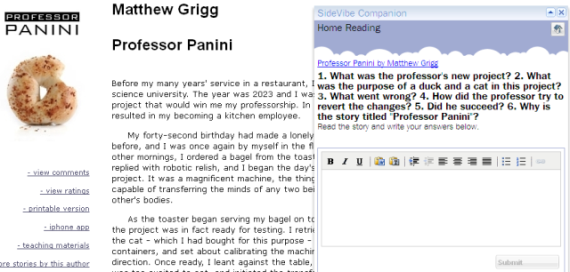
To test the website I chose my favourite site East of the Web / short stories section and prepared a simple assignment for my students about one of the short stories - Professor Panini, a witty story about dramatic mishaps taking place in 2023. The students were asked to do it as home reading task. I have not seen the results yet.


 The assignment is written by the teacher on the "vibe" which can be dragged around the page to any place which is convenient for viewing. Thus if the page is long and stretches far down the screen, the vibe is taken along and you don't have to scroll up and down to access it. Students write straight in the answer box without the need of opening a Word document or a notebook. After they submit it, the teacher can assess it and send feedback.


Thursday, 2 February 2012

Creating Presentations on Digital Devices

http://www.flickr.com/photos/yggg/2141154996/

This is a guest post by Marina Salsbury who has written articles for my blog before here and here.

* * * * * * * * *

Presentations play a big role in the business world today. Effective presentations are able to convey a rich amount of information to a large audience in a cohesive manner. In order to be able to put together a proper presentation, designers need to be able to utilize strong applications that cater towards specifically creating organized and professional presentations that can be relied on to convey information properly and effectively. According to MBA Online, branding is a highly psychological and literary arena. Presentations are great ways to use images and animations to appeal to an audience's emotions. Applications provided on different platforms allow for the most astute and professional presentations to be put together and organized for a professional setting and thus serve as an integral job in their position within the business world and other settings requiring presentations.

Some of the most new and innovative applications can be found on tablet devices (specifically the iPad). One of the most useful and most popular applications that is used on a regular basis to prepare presentations for projects is Keynote. Keynote is a presentation program that can be found on Apple computers and has been thoroughly reworked to operate on the Apple iPad. Keynote is a wonderful program for creating slide based presentations that can be presented to an audience in a stylish and engaging manner. One of its biggest advantages is that it seamlessly syncs between all of your iOS devices. You can develop a presentation on your MacBook, make quick edits right before your presentation on your iPad, and simply plug your iPhone in to give the presentation. It provides a very visual an engaging approach towards presenting and is a great way for engaging audience on a much more visual stimulating level.

Much like the previously mentioned Keynote, Powerpoint is a great visual presentation program that allows people to organize visually stimulating presentations. Powerpoint allows for presentations to be created that are infused with graphs and photos that support whatever idea or information is being demonstrated. Powerpoint is part of Microsoft Office and is infused with a great amount of features such as animation and the ability to import spreadsheet files to represent data in the form of a graph. Powerpoint is perhaps one of the most user friendly presentation programs and is widely accepted as the norm in professional and educational environments. Regardless of the product integration of Keynote, Powerpoint remains the most used presentation program in the world.

Flipping Book is an alternative presentation program that can be used on a plethora of devices. Not only does Flipping book allow you to import industry-standard formats into presentations (PDF and MS Office files), it's truly a cross-platform app by allowing you to use it on your computer, iOS, and Android devices. Flipping book simulates the literal flipping of pages in a book to allow for a more exciting presentation of material and information. Created to help fulfill marketing ideas, flipping book allows presenters to show data in a fresh and fervent manner. Flipping Book creates a more user friendly system created by engineers who were looking to find a professional and fun way to prevent material.

It is important when putting together a presentation to try and look as professional as possible. Fortunately these applications allow users to create innovative and engaging pieces of material that will engage an audience and convey material and statistics to a high degree. It is essential to be able to organize information in such a way that is conducive to a setting in which it can be properly presented. Presentations are a way in which presenters are able to convince and win over audiences, by displaying a wide range of information. It is important that only the best technology is used when conveying ideas to an audience so as to leave the best impression possible.

What is your favourite presentation tool?

Saturday, 28 January 2012

Great search engines for teachers and students

There is abundance of search engines available and most of us resort to using Google (and I love it too). There are, however, quite a lot of new, less popular tools that help us find information on the web. I have listed here some of my favourite search tools, each for its own unique features.


Twurdy is a great tool for students because it sorts the findings according to the readability level, i.e. the texts that are easier to read and understand are shaded in lighter colour while the more complicated texts have a darker colouring. This saves the precious student time as they can choose to read the easier texts first.
The name "Twurdy" comes from a play on words with the question "Too Wordy?" - a quote from the website.


My latest favourite - instaGrok search engine - is rich and versatile and saves a lot of your effort and time which you would spend looking for the necessary information, related videos or images.
instaGrok not only finds quality educational materials, but helps learners make sense of them - a quote from the website.

instaGrok displays links, images, concept maps (cool feature!), definitions of related words and terms, videos and even quizzes related to your search, all well-organised and easy to access.

If you register, you can get a summary of all your activities on instaGrok by visiting the page myGrok. If you want your students to provide proof of their online work, ask them to register and share their myGrok page with you.


Oolone is a visual search engine which lets you preview the selected webpages instantly. I typed "climate change" in the search box and got these results. For people who love to see the things before they "buy" them, this tool is indispensable.


PhotoPin is brilliant just for one reason - it searches creative commons photos which are free to download without any fear of breaking the copyright rules.


If I were a kid, I'd love this search engine KidRex because it looks as if it has been made by kids for kids.
The tool searches websites that are kids-friendly and safe, the results are carefully filtered.
If I were a primary school teacher, I'd teach my students how to use this tool.


There is also a lovely gallery of kids' drawings.
"KidRex is the best Google!" ♥


Saturday, 21 January 2012

Webquest: Festivals and Holidays

Image by OLD SKOOL Cora
A few days ago I did an activity with my students which has been a little disregarded lately - the webquest.

I remember at the dawn of using computers for learning, webquests were rather popular possibly because other web activities had not been "invented" yet. Webquests meant students could get access to the computers and have a jolly time online, especially because computers were rare in their homes.

A webquest is a creative and dynamic activity requiring some web search skills. Students usually like webquests because they get a chance to spend a lesson in the computer room (if it is not homework) and do what most of them like - browse the web.

My 16 year old students had just studied the topic of festivals and traditions and what seemed to me a logical follow-up was their independent work on summing up the basic info about the most popular holidays. We did the activity in the computer lab and the hardest part was that the students did not have any links provided but had to find the information relying only on their own search skills.
The chart they had to fill in asked for the date and place of the original holiday, traditional food, drinks and activities.


Take a look at one of the charts completed by the student.


Here is the handout. You may print or download it. If you feel like removing some of the festivals I have included in the chart or add your own, go ahead.

All in all, it was a productive and win-win classroom activity.


Wednesday, 11 January 2012

The Domination Game by @teflgeek

I learned about this fantastic game accidentally while visiting the teflgeek's blog. Great blog with a lot of useful ideas!
I immediately saw how I could use it with my students for revising certain grammar or vocabulary items.

The game is played in teams, four to be precise, and the goal is to win as many squares as possible.

I made a grid of 30 squares with numbers for the questions and some additional "home" and "centre" squares. I prepared a list of questions 1-30 which had to be answered by looking for answers in the course book.
The teams picked a colour and took turns in choosing a square and providing the correct answer. If the answer was right, the square took the team's colour. If the answer was wrong, the team lost the move and the square remained blank.

To make the game a little more challenging, the teams could get an additional point if they won 3 squares in a row (see squares 2, 11 and base) or 3 squares touching with their sides in a different configuration. They could also win one of the central squares if they surrounded it "by their colour" (see squares 9, 3, 15 + the central square). They could also surround the opponent's square on 3 sides and then the square was won over and changed its colour.
The original game was slightly different but I easily adapted it to the level of my 14 year old students.

To tell the truth, counting the points for me was the trickiest part as I was sitting at the computer and using Paint to change the colour of the squares right away plus checking if the answers given by the students were correct. In the end students helped me to count the points and made sure I did not overlook anything.
This is how the grid looked at the end of the game.


My biggest thanks to David Petrie whose idea I took, adapted and used very successfully. My students loved the game and, as usual in such cases, asked for more. I am thinking about it.

Just one question to @teflgeek. Why "domination"?

Saturday, 24 December 2011

Google+ Hangouts to Teach EFL


This is a Christmas gift for me and you - a guest post by Marina Salsbury who has already been my guest before.
Thank you Marina!


Google+ has formally been around for less than a year, but it's already turning into the online social network of choice for educators. For language teachers, especially those who teach English as a Foreign Language (EFL), Google+ can be used as a tool to augment learning and as a virtual classroom. As a learning subject, EFL demands a lot of teacher-student engagement and interaction, something that Google+ excels at. In higher learning environments such as masters or PhD programs, habitual conversation is one of the best ways to retain a language, so having an online avenue to converse will be highly beneficial for language learners.

Hangouts are essentially videoconferencing sessions on Google+ which can accommodate up to 10 people. Hangouts With Extras are enhanced online meetings that incorporate text chat, a sketchpad and other collaborative tools. Google has added many features to Hangouts, one of the most innovative being a smart video switching system, which automatically switches the onscreen camera view to the parties that are talking at the moment.

One-on-one EFL teaching or tutoring is the first function that comes to mind when considering Google+ hangouts for education. Skype has already been extensively used for this purpose for a few years. While Hangouts may be effective for traditional one-on-one EFL instruction, they truly shine for group sessions and have already being used by casual English conversation clubs.

When it comes to language instruction, EFL teachers tend to enjoy full attention from their students. This same level of concentration translates well to a Hangout session. In traditional classroom sessions, EFL students must listen and wait for their turn to verbalize the skills they have acquired. This allows students to learn from each other as well. EFL teachers should remind their students that on Hangout sessions they must wait for their peers to finish speaking; otherwise the video auto-switching feature will be enabled and become disruptive.

EFL study groups are already making Google+ their home, and thanks to the ability to integrate a video that's posted on YouTube, they are conducting Hangout sessions in which they watch, learn and discuss video material. English teachers are increasingly alerting their peers to the features that make Google+ a great educational tool, and others are discussing how the integration of Google Docs can augment EFL teaching.