Pages

Saturday, 29 December 2012

The old year is going

The end of the year is close and it pertains to sum up the days gone by.
I do not pine for the year that is coming to an end and I do not write new year resolutions.

Everything I feel has been said about a hundred years ago by Ella Wheeler Wilcox.

Made with http://www.postermywall.com/
Happy New Year to all!
 

Friday, 7 December 2012

Computers - friends or foes?

Recently I attended an award ceremony for the best teacher blogs 2012 organized in Latvia.
Yes, my blog was chosen as one of the best (so far, I'd like to add, because I am sure a new wave of talented and insightful bloggers will appear in no time).
While the recognition of my work was gratifying and inspiring, the discussions which followed the event made me think about the fragile reputation of technologies and computers, in particular.

It seems there are still lots of teachers who would gladly ban computers from students' lives blaming the machines solely for the kids' deteriorating physical bodies.

I get irrationally defensive when I hear vehement assertions that computers are to be blamed for the generation of weak, unfit children and their inability to perform well in sport or other physical activities. It reminds me of another popular culprit - PowerPoint, which is held responsible for all unsuccessful, unprofessional, boring presentations.

While I admit that computers can have a negative effect on two things - handwriting and eyesight, I can not get rid of the feeling that we would like to make computers account for physical laziness, inert lifestyle, too much eating, too few walks, parental neglect, lack of interests.

We forget to acknowledge that the use of computers develops young people's brain, their ability to cope with unexpected situations, their decision making skills, their reaction rate, their dexterity after all.

I don't even dare to hope that the time will come when schools here will approve of the flipped classroom method in teaching. That would be one straw too many...

I'd really like to hear your opinion. You can write in Latvian as well.

Sunday, 2 December 2012

Snowflakes, real and digital

Today I was a kid playing with online tools and creating snowflakes.
Because it is winter. Because Christmas is coming. Because it is snowing...
Flitting spots of white
Lighting on dead flower stalks:
Winter’s butterflies.
                            / "Snowflakes" by Susan Gundlach /


There are lots of tools, I tested just some of them. It was a pleasant and creative process and the only problem with some tools was the lack of the saving or downloading feature. If you really want to save your snowflake, make a screenshot.
This would be a great activity for younger students. A teacher can make a competition for the most beautiful snowflake and ask them to vote online for the best or put them on the class blog. Students can make and send a virtual postcard with their snowflake.


Make-a-Flake 
Cut and enjoy! This website lets you download your flake.


Snowflake Designer
The website is designed for kids, so it's safe and friendly.


Snowdays Snowflake generator
Easy to control your creative process because you can see a real-time preview of the flake you are cutting.


Snowflake Workshop
A beautifully designed site.


Create a snowflake
When the flake is ready, you can make it rotate in 2D or 3D and just admire its beauty.


Saturday, 24 November 2012

Mural.ly for creating Prezi-like presentations

Mural.ly is an amazing tool which lets you create interactive visual presentations in Prezi style but without the hyper zoom-ins and zoom-outs. Though it may not be as sophisticated as Prezi, it is definitely more user-friendly for students.

Once you get the knack of inserting (done by the drag-and-drop method) and formatting your images, text boxes and sticky notes on the canvas, the rest is just smartening up your presentation by adding decorations and frames that will turn your canvas into an interactive show. This took me the longest because the frames had to be adjusted to bring out the best of each element.
The sources of content are various, including Google, YouTube, Vimeo, Pinterest, Dropbox and more. Start from the left side menu, the building of your canvas is almost intuitive.

Mural.ly is great for student collaborative projects as it allows many users work on one canvas, even in real time. Mural.ly can be used for brainstorming ideas, collecting materials or creating group presentations.

Watch the video tutorial to learn how to assemble your online mural.


This is what you see on your mural.ly canvas while you are working on it.


Below is the final product after you have applied the show frames.
I am by no means an adept user of mural.ly, nevertheless I was glad I succeeded in creating my first digital mural.
Recently there have been problems with embedding the show, so I am just giving you the link to my mural.  Enjoy!
 

Friday, 26 October 2012

Web tools for creating posters

Only five days left till the magic night of Halloween.


No, I am not planning on a spirited and hilarious party. I have just tried out an amazing web tool Poster My Wall that lets you create posters or photo collages without registration or fee.

The process of creating a poster is so easy that it is ideal for school students and rookies.

Go to the site, click on Create your poster now, choose background and start creating.
You may use a solid background but you can also pick Color fade which lets you merge two colours of your choice. You may choose a background image from a large variety of images or upload your own photo. The rest is simple - add your text and download your poster.

If you want a "real" poster that can be put on the wall, you have to pay a few dollars but if you only need an image for a webpage or printing, the free version of size A4 is perfect.

Check out more poster creation tools.
https://www.artskills.com/
http://www.posterini.com/
http://bighugelabs.com/
http://muzy.com/app/thoughts?source=apps_page
http://picfont.com/

Friday, 19 October 2012

Create a webpage with Tackk

Tackk is a great new service that lets you instantly create a webpage.
The site editor enables you to change the colour, fonts and background of your page and add some other features like contacts, maps and comments.
The basic idea is to post a photo (drag-and-drop it straight to the page) and add some information about it. The customization of the page is elementary, that is why it is perfectly suitable for inexperienced web users.

I see this tool as a fantastic possibility for students to create short term projects and share them online. It can be a study project, a description of a trip or school event, a drawing made by the student or even a presentation. The best thing is you don't have to register to create your webpage but in that case your page will expire in one month. If you want to keep it longer, you have to register.

Here is the page I made to see how the tool works http://tackk.com/jl018w


Saturday, 13 October 2012

Thinglink and 15 crossword puzzle makers

Have you heard of Thinglink /
If not, you WILL now because I am going to tell you how easy and marvellous it is.


Thinglink is a tool that lets you put information inside your image. And it can be done effortlessly, contrary to what you may assume.

The procedure is simple. You upload, import or drag-and-drop a picture to your Thinglink page (yes, you will have to create an account) and start filling it with information. How? Click on the image to insert an active tag and write the intended information. You may also add a link to another webpage. Then save and use the interactive image wherever you want.

This is an interactive image I created by putting links to crossword making generators.
I may have put all the links in a list and it may have spared you the time of clicking the tags, one by one. But then it would have been so boring. Think about using it with your students - can you see why they might love the tool?
Some of the crossword creators have taken the test of time and proven useful, whereas a couple of other services are quite new and promising.

If you experience some problems viewing the active tags on this image, go to my Thinglink page.


Wednesday, 19 September 2012

Using textivate.com for simple interactive tasks


Textivate.com offers a great teacher tool for creating simple interactive tasks for younger students.


Update: Later discovered that all quizzes can be embedded on your class website or blog. Great feature!

For my set of interactive tasks I chose a poem by Kenn Nesbitt  Today I Had a Rotten Day. It is a brilliant poem for teaching the students about the body parts, and a wonderful resource for teaching the verbs.

Today I had a rotten day
as I was coming in from play.
I accidentally stubbed my toes
and tripped and fell and whacked my nose.
I chipped a tooth. I cut my lip.
I scraped my knee. I hurt my hip.
I pulled my shoulder, tweaked my ear,
and got a bruise upon my rear.

I banged my elbow, barked my shin.
A welt is forming on my chin.
My pencil poked me in the thigh.
I got an eyelash in my eye.
I sprained my back. I wrenched my neck.
I’m feeling like a total wreck.
So that’s the last time I refuse
when teacher says to tie my shoes.


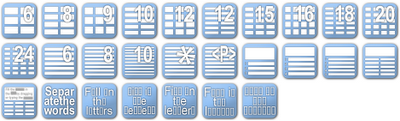
To create the tasks, you can choose from various options.


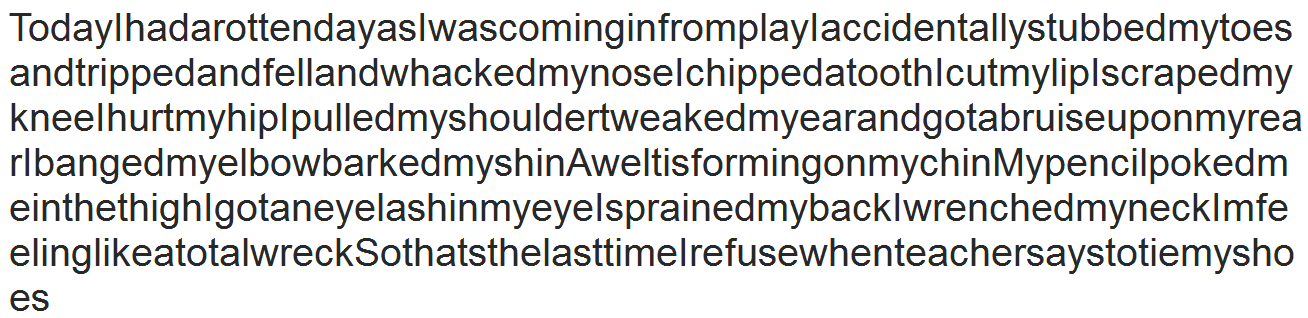
I started with the easiest task, in my opinion - separating the words. After your students have read the poem, they go online to the address you have given them and separate the words of the poem. To do it, they just have to click in the right place.


After the first task, they go on to the next, slightly more difficult task - mixed lines. There are many layout variants, I used 10 tiles. Students rearrange the lines by dragging the tiles.


When they have done the easier tasks, they go to the next task which is a little more challenging than the previous ones - they have to write the missing vowels.


After the vowel task, give them a considerably more difficult task - putting back the missing consonants.


Now it's time to ask your students to recall and write the missing words. The good thing is that the tool generates a new variant each time you click on Restart. The words may be hidden or shown depending on your student abilities. If they see the words, they simply drag them to the right space.


Finally, ask your students to reconstruct the poem from scratch - with only empty letter squares given. Looks hard but in fact it isn't, taking into account they will have learned the poem by that time.


Observe how proud they will look after they have completed the last version of the tasks!
 

Tuesday, 28 August 2012

Some classroom tools from Learning Suite by Microsoft


Last week I attended a professional development course organized by Microsoft Latvia where a handful of teachers were prepared for serving as mentors of Microsoft technologies in education.

The picture which I took on a crisp sunny August day shows the 10th floor terrace of our hotel with a view of the Baltic Sea.


I am sharing with you some ideas about one of the Microsoft products - Learning Suite.
It is a package of innovative applications for education and one of its best features is that it is free to download. The only condition for using most of the tools included in the set is the requirement of Windows7 on your computer. Some of the applications also work on older Windows versions. You will also need MS Office 2010.


First go to Partners for Learning  http://www.pil-network.com/ website and register. Click on Resources and select Free tools. Then download Learning Suite by Microsoft.


The new interface lets you see all tools in one place. Tick the application you want to install on your computer. You need not install all apps, pick those which you would like to use. If you wish, you can install other tools later.


Here are some of the applications I tried and found useful.


AutoCollage is an easy and quick way to make collages. Upload as many pictures as you wish and let the tool do its job.


Here's a collage I made.
Can you guess the question I was going to ask my students?

Right! - What London landmarks can you see in this collage?


Another fun tool is Songsmith.
Songsmith generates musical accompaniment to the voice. Students write lyrics, choose a musical style, sing into the microphone and the tool puts everything together in a song.
It's a perfect tool for music lessons but students can sing grammar rules or new vocabulary as well. Working in pairs or groups adds to amusement and helps to overcome shyness.


Photosynth is an application for photography fans. The idea is to take a large number (20 to 300) of images of one object, upload them to Photosynth and the tool will create a 3D picture with zooming and rotation features. You may suffer a couple of failures until you succeed in making your first 3D picture though.
Students can use this application to create innovative visual projects. Visit Photosynth homepage for more ideas and inspiration.


Flashcards can be made by both teachers and students for studying vocabulary online. One deck can have up to 300 cards. A card can have text, image, and sound to make the learning process more optimal. All flashcards are stored on the Flashcards homepage and can be accessed at any time. To play flashcards, you will need Silverlight plug-in which can be downloaded for free.


Mouse Mischief is a fun tool for younger students. As it is a PowerPoint add-in, after the installation you will see it when you open your PowerPoint. The teacher can then click on the Multiple Mouse tab in the toolbar and start making a quiz, a test or a poll. A student is given a mouse and votes or answers a question by clicking on the right option. The teacher can control the pace and procedure of the activity.


Partners in Learning website offers resources and tutorials for each application, and of course there are a lot more tools to be discovered and mastered to engage and motivate students.
   

Wednesday, 1 August 2012

What I like about Windows 7

Now when Windows 8 is knocking on the door, I have finally installed Windows 7.
Those who have been using it for a while and have already explored its possibilities, may not read further. Because what I am going to write will be for rookies. And no, I am not going to review Windows 7.


Recently I stumbled across a forum where people ask questions about technologies. My eye caught this. A true LOL answer!
Q. Do you know how many people use windows? (meaning the Windows operating system)
A. I dunno. The only people I know that don't use windows are prisoners.

I am not a technician. I am not even a computer teacher. What I need is simplicity and effectiveness when I use a computer. Here is what I found in Windows 7:

1. The Snipping tool. Brilliant! 1-2-3 and you have made a screenshot! I feel sorry for all those numerous screenshot tools that have been produced so far. Who needs them if you can use an inbuilt tool which is just one click away?

2. Sticky notes. Digital notes that you stick on your screen and use exactly in the way you would use a paper note, it just sticks to your screen and displays your notes for as long as you need.

3. Aero Peek. Sounds smart but in reality it's again a very simple feature! When you slide your mouse across the buttons on the taskbar at the bottom of your screen (provided you have opened several pages or files on your computer), each button shows thumbnails of all the pages and makes it very easy for you to get straight back to the document or webpage you recently viewed. This is efficient indeed!

Now my next step is to open the windows wider.

P.S. I wanted to finish this post 15 minutes ago in July but finished in August. How time flies!